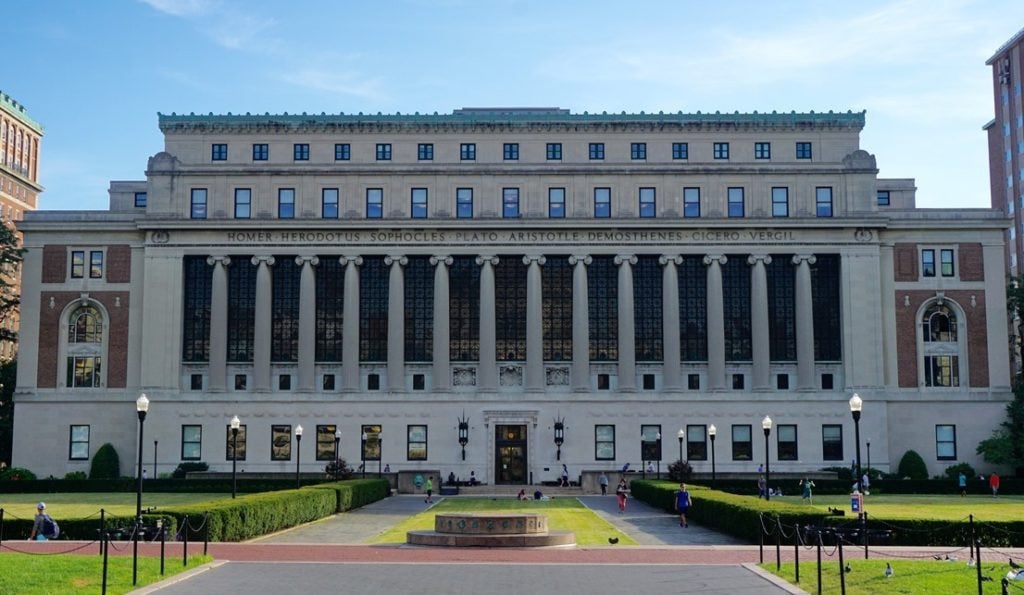
For ambitious students aiming to study at one of the world’s most prestigious universities, knowing how to use the Columbia University admissions portal effectively can make all the difference. From account creation to tracking application progress, this central hub streamlines your interaction with Columbia’s admissions system. Yet, like many online portals, it comes with quirks and common headaches. Let’s walk through everything you need to know, including how to navigate common problems with practical fixes.
What Is the Columbia University Admissions Portal?
The Columbia University admissions portal is the online system through which applicants manage their application, track submissions, and see official updates. Whether you’re applying for undergraduate, graduate, or professional programs, the portal plays a central role in your admissions journey.
Each school within Columbia may have its own portal ecosystem — for example, the School of Professional Studies, Graduate School of Architecture (GSAPP), and Business School portals have slightly different login pages and workflows.
Step‑by‑Step: Applying Through the Portal
Here’s how most applicants get started with the Columbia University admissions portal:
1. Create an Account
Before you can access your application dashboard, you must set up an account.
- Visit the official login page (e.g., Columbia Undergraduate Admissions portal).
- If you’re a first‑time applicant, select “Create an account.”
- Enter your email, date of birth, and basic profile details.
- You’ll receive a temporary PIN or activation email — check your inbox and spam folder.
Once you’ve activated your account, log in and begin the application form specific to your program of interest.
2. Fill Out the Application
Each application has sections for personal details, academic history, essays, and supporting documents (transcripts, recommendations, test scores). Work carefully through each section and save your progress frequently.
Graduate programs such as SIPA or GSAPP may have additional components like video essays or a resume upload.
3. Upload & Confirm Documents
Once submitted, most major files (transcripts, letters of recommendation, test scores) will show up in your portal’s document status section. If something shows as “not received,” it may simply be processing or need resending.

Common Problems Applicants Face
No system is perfect, and many applicants report glitches — some technical, others related to communication or timing. Here are the frequent complaints and how to tackle them:
1. Activation Email Doesn’t Arrive
Sometimes applicants never see the activation email. This can be extremely frustrating when deadlines loom.
Try these fixes:
- Double‑check spam, promotions, and all other email folders — the activation email may land there.
- Use the “Forgot Password” option on the portal login to prompt a new message.
- If none of this works within a few days, contact the admissions office directly with your name, birth date, and email address.
2. Status Doesn’t Update After Submitting Documents
Many users wonder why uploaded scores or transcripts still show “Awaiting” weeks after submitting. While it can be nerve‑racking, the admissions office often needs time to process batch updates — especially close to deadlines.
What to do:
- Wait 3–5 business days before assuming something is wrong.
- Ask your high school counselor or recommender to resend materials if you have proof of transmission.
- If it’s been weeks, email the admissions support address provided on the official site.
3. Browser or Technical Glitches
Portal pages that fail to load, sections that vanish, or buttons that don’t respond are common tech frustrations, especially under high load.
Try these solutions:
- Clear browser cache and cookies.
- Try a different browser (Chrome often works best).
- Disable ad blockers or privacy extensions that could interfere with scripts.
- Switch to a wired internet connection if possible.
4. Odd Account Behavior or Error Messages
Some applicants report strange errors like pages looping, stuck loading screens, or repeated redirects.
That’s often a session cache issue, but if it persists:
- Attempt logging in from another device.
- Create a fresh account with the same email if nothing else works.
- Reach out to the support team with screenshots of the error.

Insider Tips for a Smoother Experience
Beyond troubleshooting obvious errors, here are smart practices that many successful applicants swear by:
- Save often: Some portals timeout after a period of inactivity.
- Name your document files clearly: Use “LASTNAME_Transcript.pdf” rather than vague names like “scan1.pdf.”
- Keep backups: Always keep copies of what you upload — for quick resubmissions if needed.
- Check deadlines carefully: Programs like GSAPP have strict cutoff dates for certain degrees.
When to Contact Admissions Directly
If you’ve tried all the fixes above and you’re still stuck — especially close to a deadline — don’t hesitate to contact the admissions office. Provide:
- Your full name and email used to apply
- Your application type (Undergrad, Transfer, Grad, etc.)
- A clear description of the issue
- Screenshots where possible
Undergraduate admissions contact information and document‑submission instructions can be found on the official Contact page.
Useful Resources & Next Steps
- Columbia University Applicant Portal Guide – Accolade Tutor — practical walkthroughs and troubleshooting tips.
- Columbia University Admission Requirements – Accolade Tutor — full list of prerequisites and eligibility details.
- Common Application — if you’re applying as an undergraduate, most applicants begin here before accessing the Columbia portal.
Final Thoughts
Mastering the Columbia University admissions portal isn’t just about hitting “Submit.” It’s about staying organized, calm, and proactive. While technical hiccups and delays can be frustrating, most are fixable with patience and the steps outlined above. Your application — and your dream of joining Columbia — deserves a smooth path forward.